Error 404
Page Not Found
The requested page could not be found. Return to the Android Photo Vault technical guide or use the guide navigation to continue.

Your smartphone gallery contains some of your most personal information. Whether you are handing your phone to a friend to show a single picture or protecting sensitive documents stored as images, leaving your entire camera roll exposed is a massive privacy risk.
The fastest way to password protect a photo on Android is to use the native Google Photos Locked Folder or the Samsung Secure Folder. If you need advanced encryption, batch protection, or cross-device cloud syncing for your hidden albums, use a dedicated security app like Folder Lock.
When users search for how to lock photos in Android, they often discover that standard gallery apps lack built-in PIN locks. By default, Android relies on your lock screen security. Once the phone is unlocked, the gallery is wide open.
Hiding a photo is not the same as encrypting it. Simple gallery "hide" features merely remove the image from the main view. They do not prevent a file manager app, a PC connection, or a determined snooper from accessing the raw image files on your storage. True photo protection requires either placing the image into an encrypted container or locking the gallery app itself with a secondary password.

Not sure where to start? Answer one question to get our editorial recommendation for your specific use case.
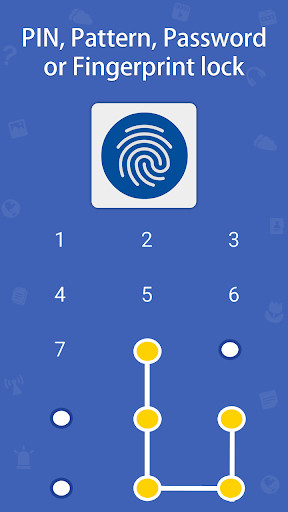
Available on Android 6.0 and later, Google Photos includes a native feature to password protect a photo on Android by moving it to a hidden, device-locked directory.
Limitations: By default, these photos are not backed up to the cloud. If you lose your device or uninstall the app without backing up, the photos are permanently lost.

If you search for how to password protect a folder in an Android phone and own a Samsung Galaxy, this is your best native tool. It uses hardware-level Knox security.
This does not password protect photos; it merely hides them from gallery apps.
.nomedia (the period at the start is required).Not all locks are created equal. Here is how the standard approaches stack up when securing photos on Android.
| Method | Encryption Level | Cloud Backup | Best For |
|---|---|---|---|
| .nomedia Trick | None (Just hidden) | No | Basic hiding from casual snoops |
| Google Photos | Device-level OS lock | Optional (Cloud sync can be risky) | Quick, free protection on Pixel/Stock Android |
| Samsung Secure Folder | Hardware (Knox) | Yes (via Samsung Cloud) | Galaxy device owners |
| Dedicated App (Folder Lock) | AES-256 Bit Encryption | Yes (Secure Cloud Sync) | Ultimate privacy, cross-device access, dedicated passwords |
Native tools are good for casual privacy, but they tie your photo security to your general phone PIN. For true separation and military-grade AES 256-bit encryption, we recommend a dedicated Android photo locker that offers independent security.
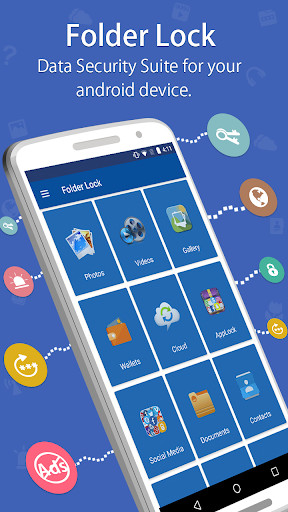
Use the toggle below to see how basic native device protection differs from dedicated software encryption.
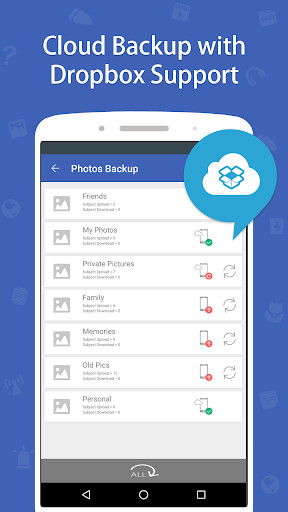
Moving your public images into a highly secure, encrypted environment takes only a few taps.

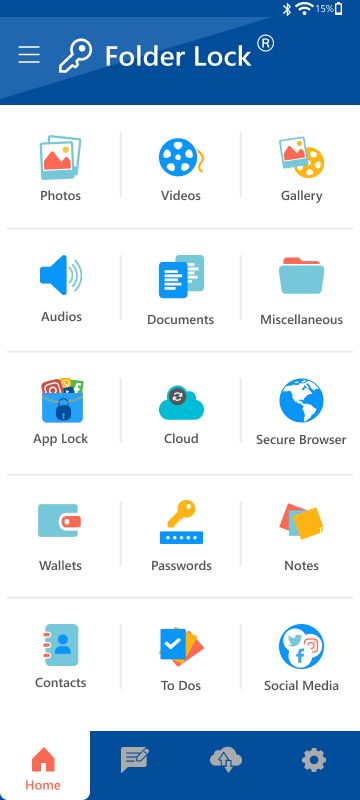
Losing access to private photos is stressful. Here is how to safely recover your data if you run into issues.
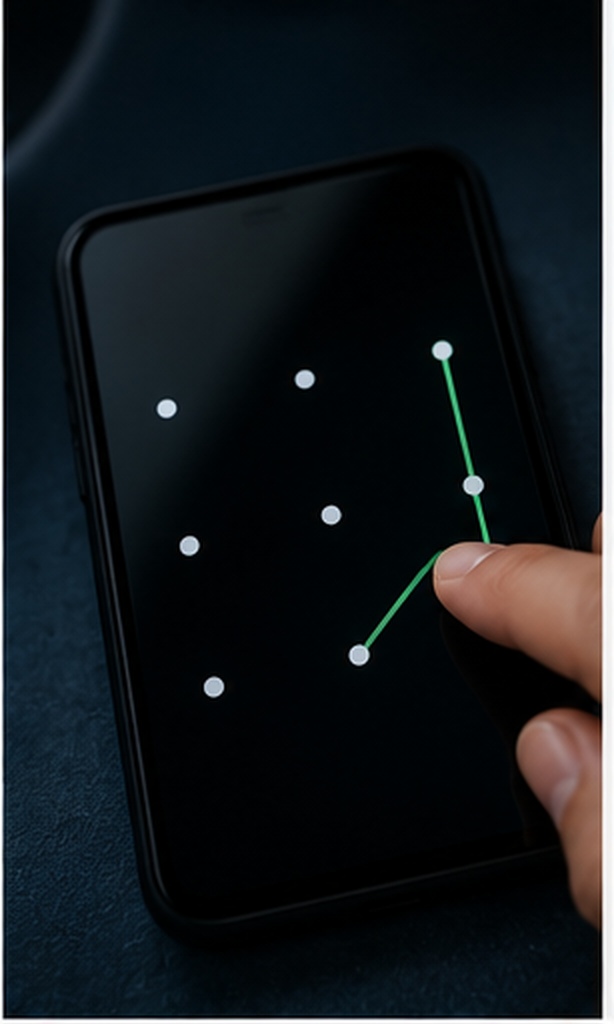
If you used a third-party app like Folder Lock and forgot your PIN, do not uninstall the app immediately—this can delete the encrypted container on some systems.
Instead, tap the Forgot Password? link on the lock screen. The app will email a recovery link or temporary code to the email address you registered during setup. Once verified, you can assign a new PIN.
If the app stops responding, go to Android Settings > Apps > [Locker App] > Force Stop. Clear the app Cache (do NOT clear App Data, as this holds your encrypted files). Relaunch the app. If you synced your vault to the cloud, you can also reinstall the app on a fresh device and log in to pull down your protected albums.

You can use the built-in Google Photos Locked Folder, Samsung Secure Folder, or a dedicated encryption app like Folder Lock to move photos into a password-protected environment.
If they are using basic hiding (.nomedia), yes, via a file manager. If they are in a Secure Folder or Folder Lock encrypted vault, they cannot be accessed without the PIN, barring sophisticated forensic extraction.
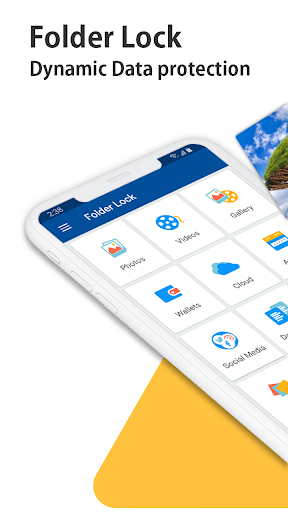
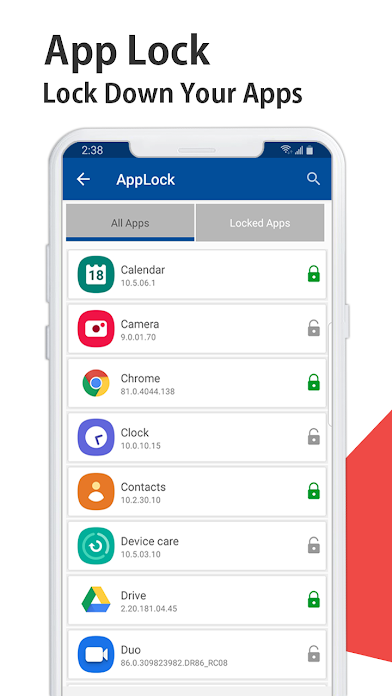
Yes. Tools like Folder Lock also include an "AppLock" feature, allowing you to put a password on the entire Gallery, WhatsApp, or Chrome app before it even opens.
Relying on basic gallery hiding features leaves your personal photos vulnerable. Whether you choose built-in OS tools or dedicated software, putting a real lock between your private images and the rest of your phone is an essential digital security step.
For robust encryption, decoy passwords, and secure cloud backups, we recommend giving Folder Lock a try.

The requested page could not be found. Return to the Android Photo Vault technical guide or use the guide navigation to continue.